
I do most of my software engineering with Claude Code on a remote Linux host, not on my laptop. This article is about the two tools that make that work well for me: tmux for the agent sessions and VS Code with Remote SSH for reading and editing.
My workflow is spec-driven development with speq-skill. That means two kinds of work: running agent sessions, and reading plans, specs, and code. tmux covers the first, VS Code covers the second.
The host#
My host is Ferris, an old MacBook Pro 15“ Retina running Debian with XFCE. I wrote about it in Why I turned my old MacBook into a server for coding agents.
The host has only the software I need to build my projects. My laptop, with its credentials and personal data, stays out of it. Everything below works the same on any Linux box you can reach over SSH.
tmux for agent sessions#
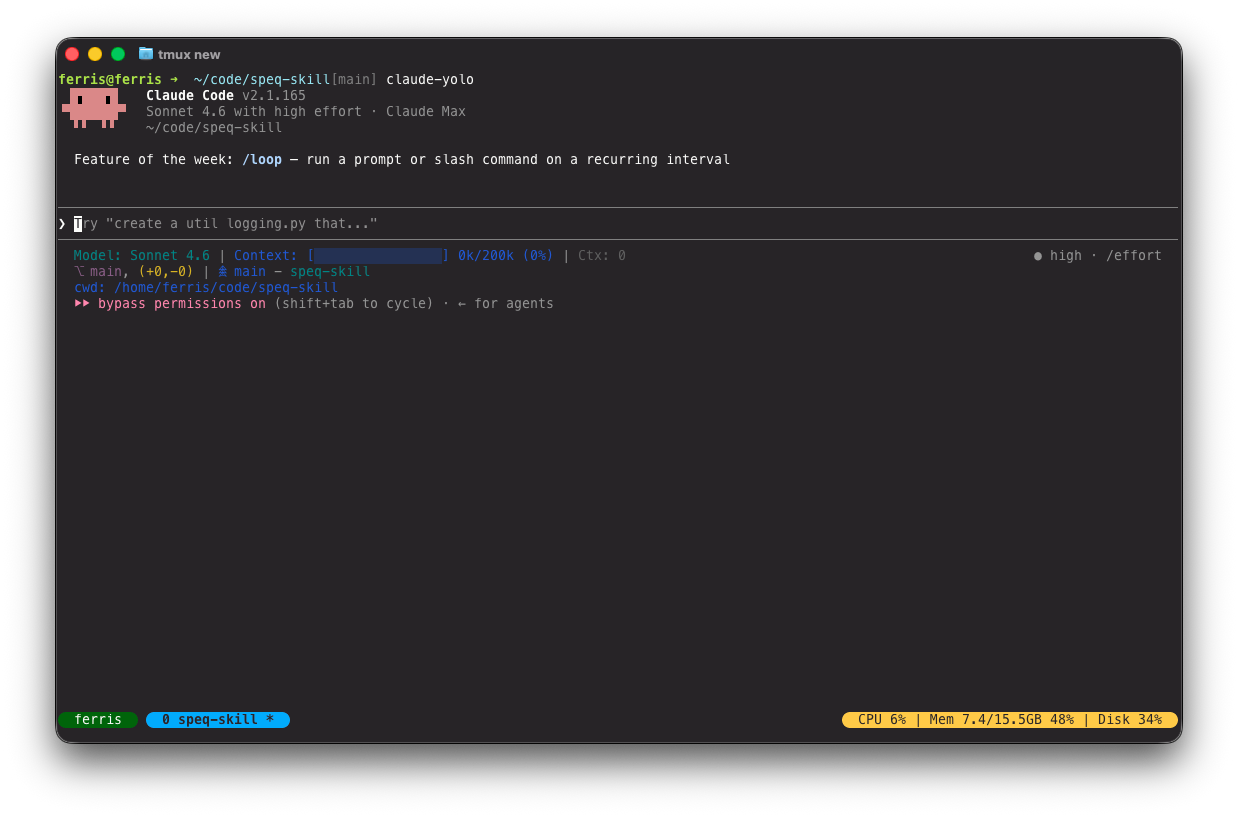
tmux is how I keep multiple agent sessions organized on Ferris. Every Claude Code session runs inside tmux, so the session survives when I disconnect from SSH. I can come back any time, reattach, and can interact with the agent and follow its output.
My workflow for a new task:
# SSH into the host
ssh ferris@ferris.local

# Start a new tmux session
tmux new

# Rename the window to something meaningful (prefix + comma)
CTRL-B ,

# Start Claude
claude
I added a custom status bar to tmux based on a bash script. It shows me at a glance where I am and how the machine is doing. On the left: the hostname in a green pill, so I always know I am on Ferris. On the right: live CPU load, memory usage, and disk fill. Each active agent run appears as a named window tab in the middle.
[hostname] [window-name] [system-stats]The hostname on the left comes from #H in status-left. The right-side stats are produced by a small shell script that reads /proc/stat and free on Linux, or top -l1 and vm_stat on macOS, and outputs one fixed-format line: CPU X% | Mem X/XGB X% | Disk X%. The stats refresh every 5 seconds.
I published the tmux config and the stats script as a gist on GitHub if you want to copy the setup on your end.
VS Code Remote SSH for specs, plans, and code#
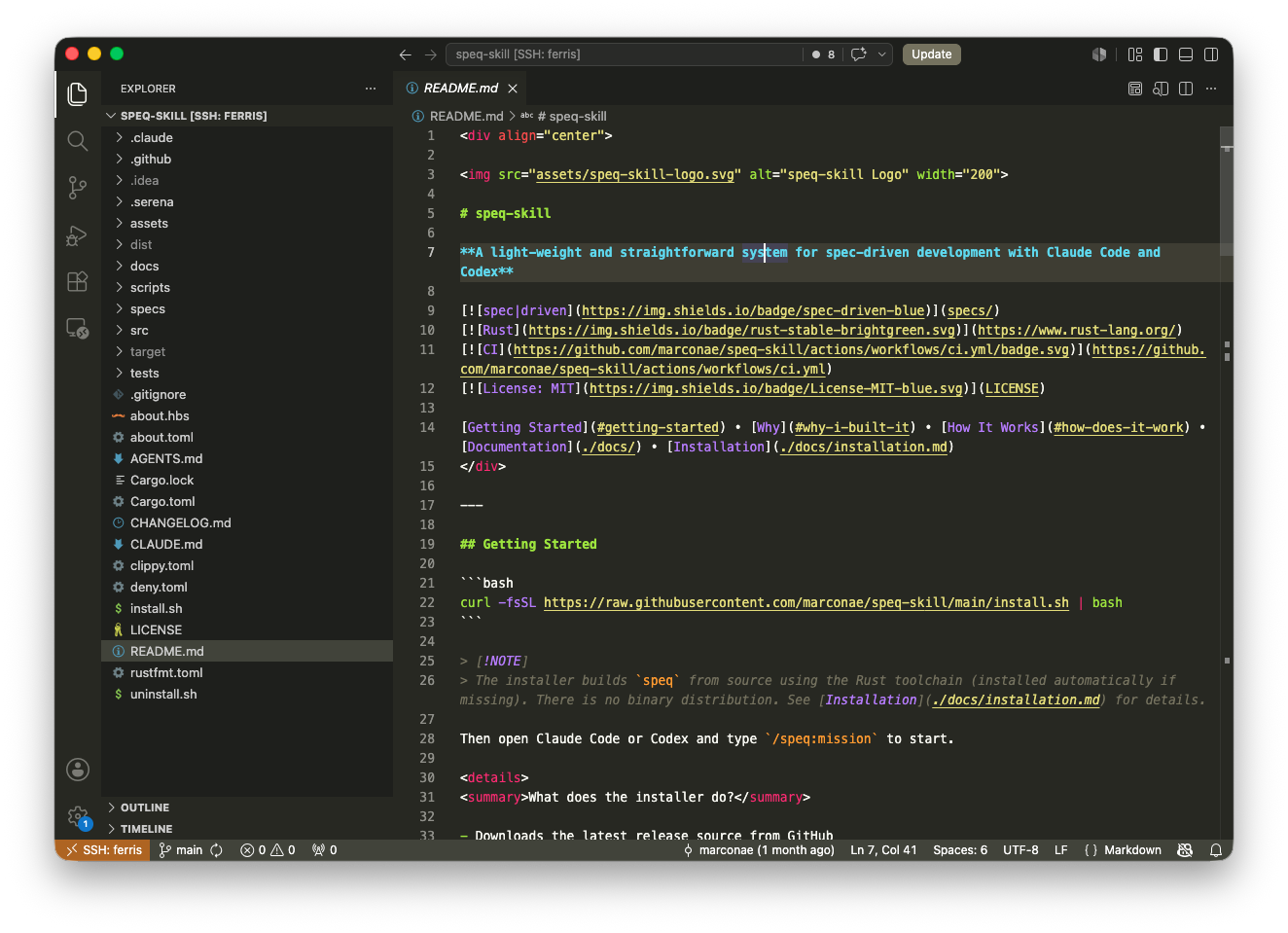
Working with agents involves plenty of reading: plans, spec requirements, and verification reports. I work spec-driven on most of my projects, so the main artifacts before, during, and after a feature are Markdown files. For most of my projects, I also check code or step through the project’s integration tests to make sure the software does what it is supposed to do.
I tried two approaches before that did not work well for me:
- Samba shares on macOS. Too slow. IDEs expect file-system events that Samba does not provide. macOS also writes
._*metadata files into every folder, which cluttered the project trees. And the port needed an SSH tunnel to be reachable. - SSHFS. Essentially the same problems. The latency made editing feel sluggish and file-system events were unreliable.
The solution that works best for me is the Remote - SSH extension for VS Code. It opens any folder on a remote machine directly in VS Code over SSH: full file explorer, editor, IntelliSense, and a terminal that runs on the remote host. Setup is minimal: install the extension, make sure your SSH host is in ~/.ssh/config, and pick it from the remote connection menu. After that, specs, plans, and verification reports open instantly and render correctly as Markdown. The screenshot above shows the project open from my main Mac.
Why this works for me#
- Sessions survive. The agent sessions are decoupled from my laptop and I can reconnect to them anytime via SSH.
- Remote editor. The Remote SSH extension in VSCode gives me the same VS Code on the remote files as on local.
- Several projects in parallel. Each project has its own named tmux window and I can switch between agents.